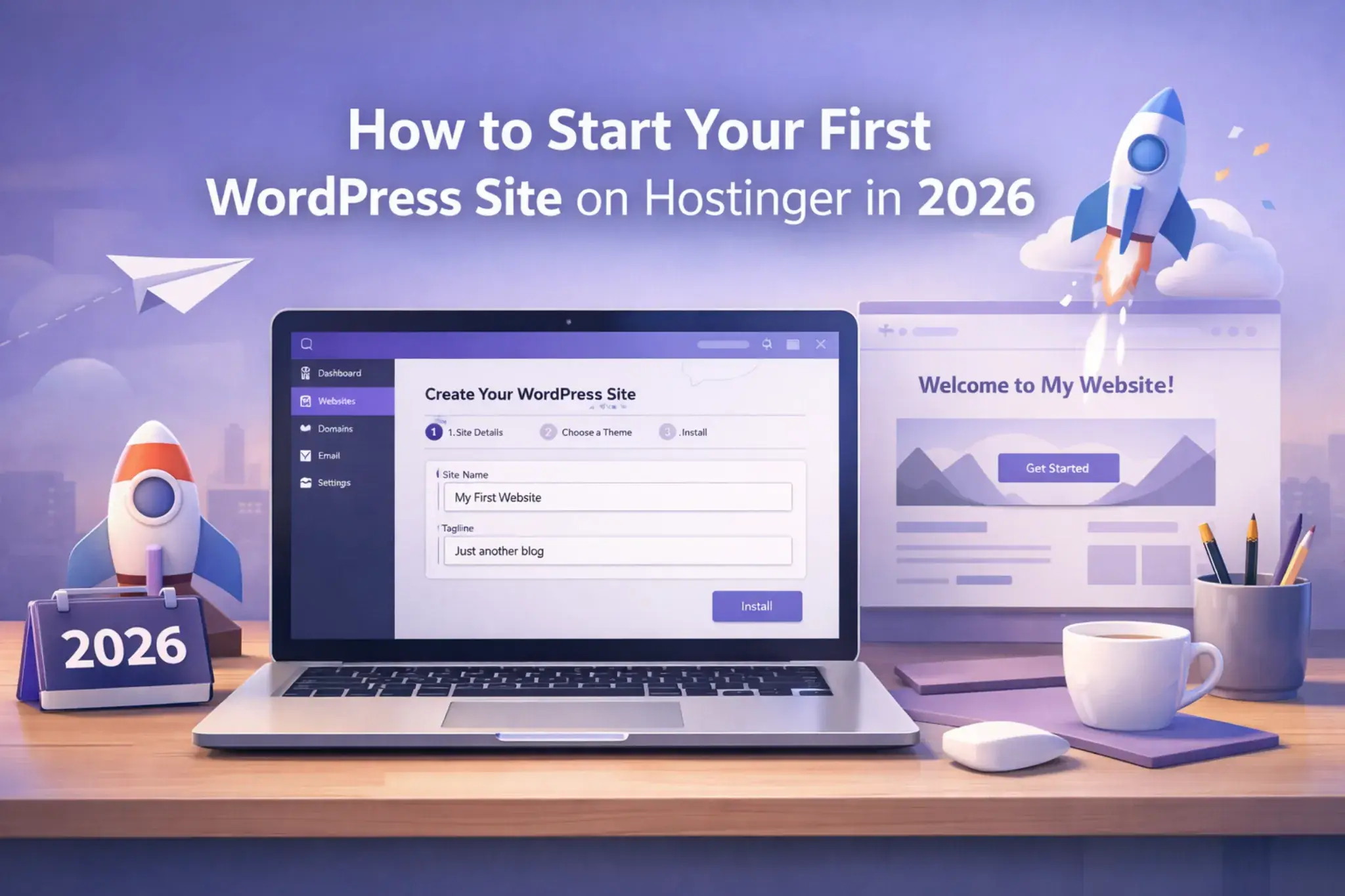
How to Start Your First WordPress Site on Hostinger in 2026
If you’re using Hostinger for your first WordPress website, the hardest part usually is not installing WordPress. It is choosing the right starting point, understanding what is actually included, and getting the first setup decisions right before your live site is public.
Affiliate Disclosure: This article may contain affiliate links. If you buy through them, we may earn a commission at no extra cost to you. We recommend tools based on fit, not hype.
How we verified: We reviewed Hostinger’s current pricing, WordPress hosting, support, backup, migration, free-domain, and SSL documentation, plus WordPress.org’s hosting and requirements pages, in March 2026. We did not run independent speed tests for this article.
Why this article is worth reading
Most hosting content does one of two things badly for new users: it either turns into a broad review, or it throws dozens of hosting options at you when you already feel overwhelmed. That leaves a gap between “I think Hostinger might work” and “I know what to buy and what to do next.”
This guide fills that gap. It is a 2026 guide for beginners who want a simple path from checkout to launch, without pretending that one host is perfect for every site or that AI can replace basic setup decisions.
Quick Verdict (TL;DR)
Hostinger is a practical starting point for a first WordPress site if you want a low-friction dashboard, SSL, a straightforward WordPress setup flow, and a clear upgrade path.
Best for: first blogs, portfolio sites, content sites, affiliate sites, and simple small business brochure websites.
Skip it if: you want phone-first support, high-touch agency workflows, or a demanding store from day one.
Safest starting point: usually one step above the cheapest option
Always check before buying: renewal pricing, free domain eligibility, backup frequency, number of websites, and support expectations.
Quick link: Check Current Hostinger Plans
What should beginners look for in WordPress hosting in 2026?
At a technical level, WordPress is not demanding. For a beginner, though, the real filters are simpler than a spec sheet. Look for free SSL, backup access, an easy-to-use dashboard, one-click WordPress setup, clear renewal wording, and an upgrade path that does not force you into a migration too early.
AI can help with setup or rough starter content, but it should be treated as a convenience layer, not the reason you choose a hosting service. The plan should be chosen for stability, backups, SSL, dashboard clarity, and room to grow.
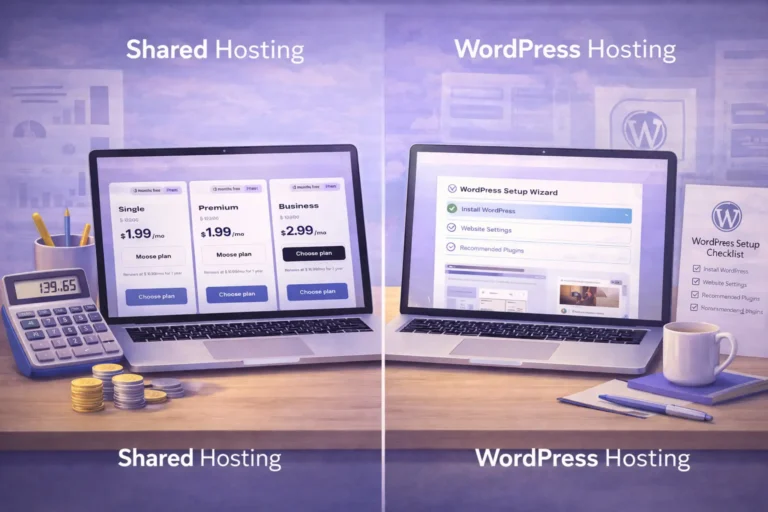
If you are still comparing hosting types, start with the shared hosting vs WordPress hosting guide.
| What to check | Why it matters | Good starter answer |
|---|---|---|
| SSL / free SSL certificate | Protects forms, logins, and trust | Included and easy to force HTTPS |
| Backup frequency | Lets you recover from bad updates | Weekly minimum; daily if the site matters to revenue |
| Dashboard | Reduces setup friction | Simple panel with direct WordPress access |
| Domain rules | Prevents checkout confusion | Eligible free domain on the right billing term |
| Upgrade path | Avoids re-buying too soon | Clear move from starter plan to Business or Cloud |
Is Hostinger a good fit for your first WordPress site?
Yes, for the right type of beginner.
What Hostinger offers is convenience more than fine-grained server control. That is usually a good trade for a beginner, a blogger, a creator, or a small business owner who wants a clean hosting experience. It is less ideal if you already know you want phone support, a premium concierge feel, or advanced WordPress development workflows from day one.
Hostinger support is better suited to users who are comfortable with chat-led help, tutorials, and knowledge-base resources. It is a weaker fit if you strongly prefer phone-first support.
Which Hostinger plan is the safest starting point for most beginners?
For most first-time WordPress sites, the safest starting point is usually a plan that gives you SSL, backup access, basic WordPress management, and a clean upgrade path.
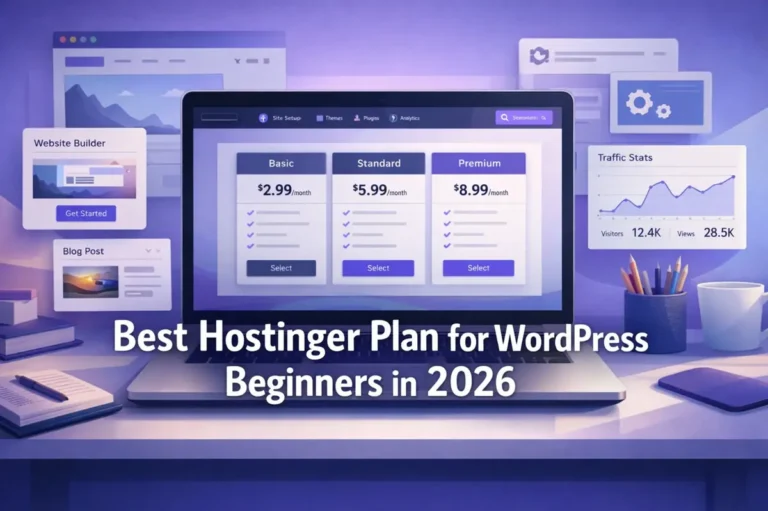
Do not turn this decision into a full plan comparison here. For the full plan breakdown, read the guide to the best Hostinger plan for WordPress beginners. The practical rule is simple: start lean if the site is simple, and choose a stronger plan only if the site is tied to revenue, ecommerce, heavier plugins, or more frequent changes.
Cloud hosting is more about headroom than beginner simplicity, so only move up when traffic, admin activity, or store demands justify it. I’m intentionally not turning this article into a full plan breakdown because that belongs in your separate plan-selection article.
What do you actually get after checkout?
On current Hostinger web and managed WordPress plans, what you get depends on tier and billing term, but the common beginner-facing items are hPanel access, WordPress management tools, free SSL, automatic backups, and the ability to claim a free domain on eligible new 12+ month purchases.
The details matter more than the headline. Not every plan qualifies for a free domain. Backup behavior differs by plan, and the number of websites and email accounts changes quickly as you move up the ladder. Many beginners miss these details because they focus only on the first promo number instead of the full plan they are actually buying.
How Does WordPress Setup Work Inside hPanel?
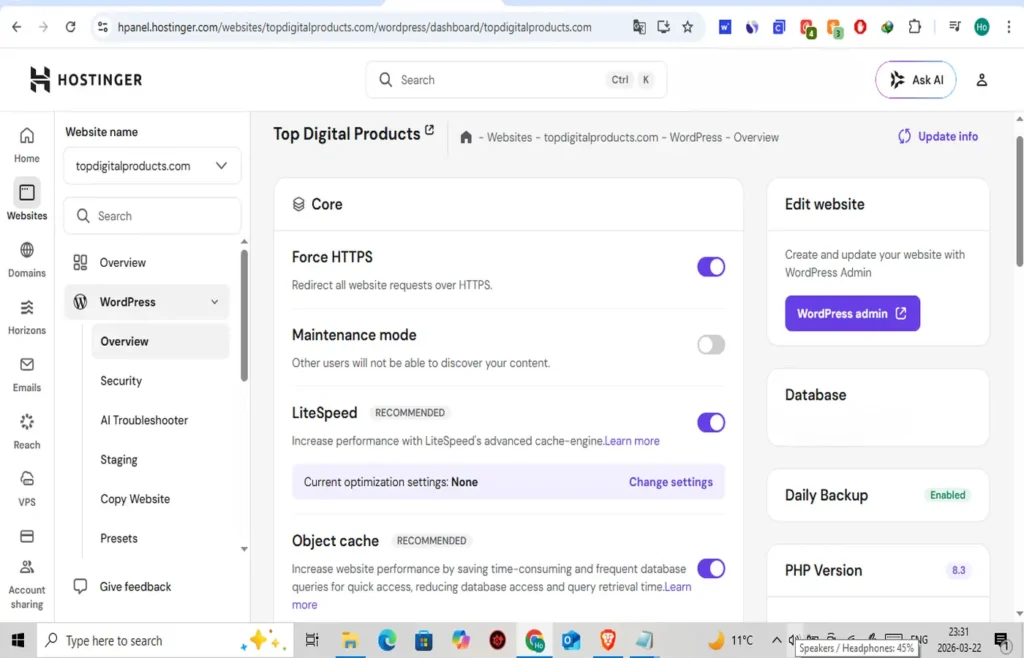
Hostinger’s setup flow is straightforward. You log into hPanel, go to Create or migrate a website, choose WordPress, add your admin login details, pick optional plugins and a theme, choose a new or existing domain, and then open the Admin Panel to reach your WordPress dashboard.
That means you can build a WordPress site without touching databases, FTP, or manual file uploads. That is exactly why it works well as a beginner path.
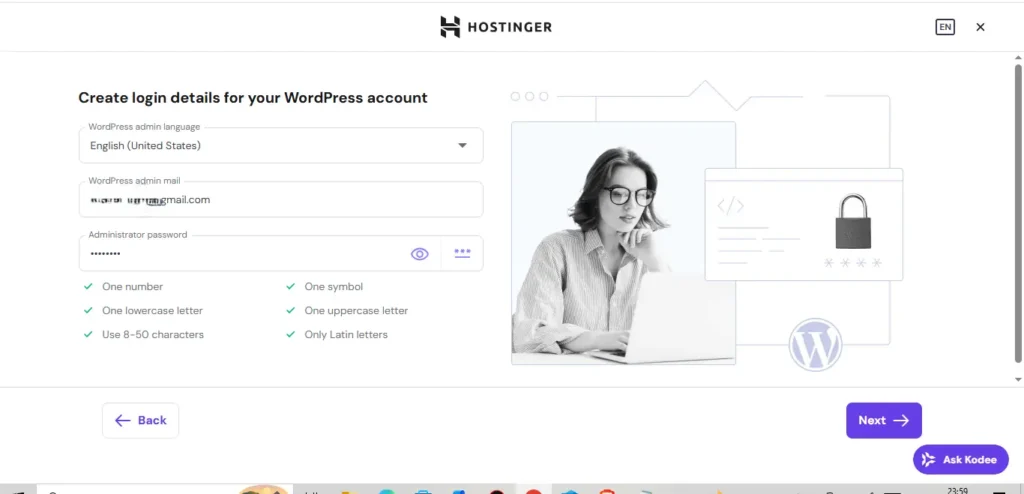
The mistake is assuming the first theme, first plugin bundle, or first AI draft is automatically the right one. Hostinger makes setup easier; it does not make site decisions for you.
What should you configure before your site goes live?
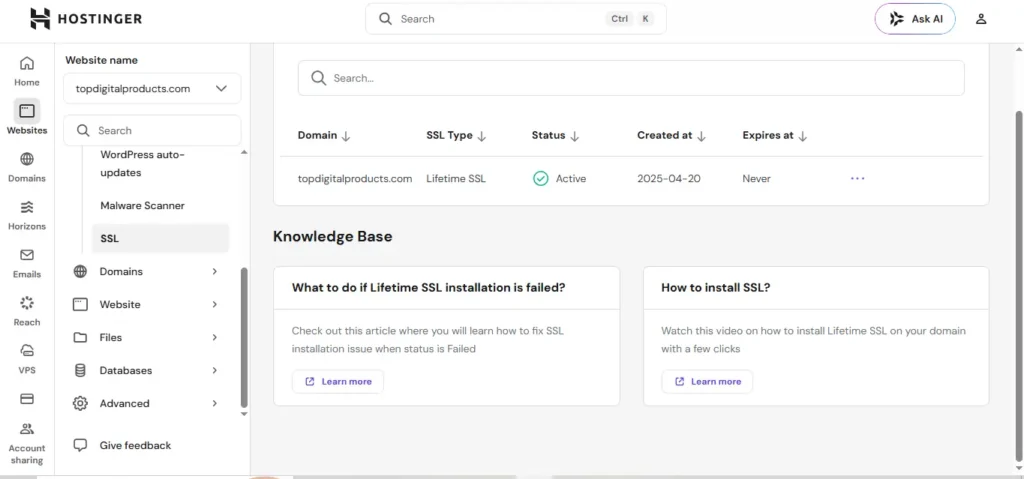
Before you push a live site, confirm that SSL is active, check that your backup area is accessible, set a clean permalink structure, remove demo content, and keep your plugin stack small.
This is also the point where you should think about cache and SEO basics. Use one sensible cache layer, optimize images, and make sure search engine visibility is set correctly before you publish.
What beginner mistakes should you avoid on day one?
The biggest beginner mistakes are usually simple: choosing the wrong billing term, assuming every plan includes a free domain, ignoring backup frequency, installing too many plugins, publishing AI copy without editing, and forgetting that renewal pricing may differ from the starter offer.
Another common mistake is matching the wrong plan to the wrong site type. A simple blog and a WooCommerce store should not use the same starting logic just because the landing page looks similar.
When should you upgrade from your first hosting plan?
Upgrade when the site’s workload changes, not because a sales page tells you to.
Good upgrade triggers are:
- needing daily backups
- launching WooCommerce
- adding multiple websites
- handling more frequent edits
- wanting more margin before traffic spikes hurt user experience
A basic plan can be enough for a small blog or brochure site. It becomes less comfortable once a store, more plugins, or real business dependence enters the picture.
Who is Hostinger best for, and who should skip it?
Hostinger is best for WordPress beginners who want simple onboarding, hPanel access, SSL, backup options, and a clean path to launch. It fits personal sites, affiliate sites, creator sites, and small business projects that need a straightforward setup.
You should skip it if you want phone-first support, agency-style hand-holding, deep server control, or a custom workflow from day one.
Key Takeaways
- Start with the site type, not the promo banner.
- Choose hosting that gives you SSL, backup access, clear renewal terms, and an easy WordPress setup flow.
- Use hPanel to install WordPress quickly, then slow down and configure the basics.
- Keep your plugin stack lean and avoid unnecessary tools.
- Treat AI as a helper, not a replacement for setup decisions.
- Upgrade only when your site workload changes.
FAQs
Is Hostinger good for WordPress beginners in 2026?
Yes, for the right beginner. It is attractive when you want easy onboarding, hPanel access, free SSL, and a clean upgrade path.
Do I need WordPress hosting or shared hosting for a first site?
Not always. Focus less on the label and more on whether the plan includes SSL, backup access, a smooth WordPress install flow, and enough room for your first year.
Does Hostinger include a free domain name?
A free domain may be included on eligible plans and billing terms, usually for the first year only. Always confirm the current checkout details before buying.
Does Hostinger include SSL on every plan?
Free SSL is available on eligible Hostinger hosting plans, but you should still confirm the current plan details at checkout.
Can I migrate an existing WordPress site to Hostinger?
Usually yes, but migration availability can depend on eligibility, site type, and resource limits. Check the current migration details before relying on it.
Is hPanel the same as cPanel?
No. hPanel is Hostinger’s custom dashboard and it is different from the standard cPanel experience.
Can I use WooCommerce on Hostinger?
Yes, but plan choice matters. A store should not be choosing only on the cheapest promo rate.
Conclusion
Starting your first WordPress site on Hostinger is mostly about making the right early decisions: choose a plan that fits your first year, install WordPress through hPanel, activate SSL, configure the basics, and keep your plugin stack lightweight.
Do not let the easy setup make you skip the serious checks. Review renewal pricing, backup frequency, domain rules, support style, and whether your site needs a simple plan or a stronger setup.
Once the foundation is clean, focus on publishing useful content and improving the site step by step.