How to Migrate Your WordPress Website to Hostinger
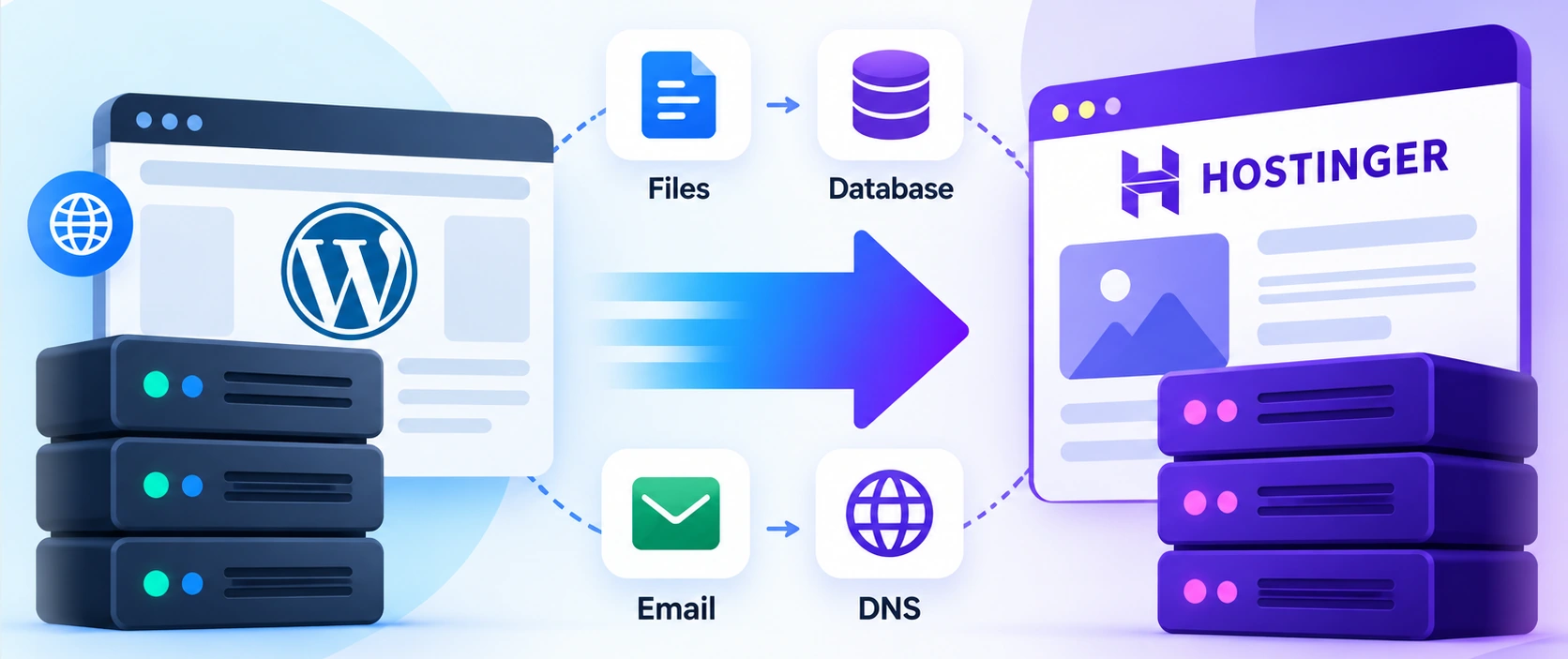
Moving an existing WordPress website to Hostinger can be straightforward, but a successful migration involves more than transferring files. You also need to protect your database, connect your domain correctly, preserve your email service, and make sure visitors can still access your content.
The safest approach is to back up your website, complete the migration, test the new hosting environment, update DNS, and verify everything before closing your old hosting account.
This guide explains the practical steps for moving a self-hosted WordPress site from another hosting provider to Hostinger. It covers assisted migration, plugin and manual alternatives, domain settings, email protection, common problems, and a final checklist.
Quick answer: For most eligible single-site WordPress installations, Hostinger’s assisted migration service is the simplest starting point. Keep your existing website online until the transfer is complete and tested. Then update the necessary DNS records, verify your email configuration, and monitor the new site.
Affiliate disclosure: TopDigitalProducts.com may earn commissions from qualifying affiliate links. Recommendations are intended to help readers make informed decisions, and offers or terms should always be confirmed with the provider.
Last reviewed: October 2026.
How we verified: This guide was prepared using Hostinger’s official migration, DNS, and email documentation, together with Google Search Central’s guidance on changing hosting infrastructure. It does not claim that our team personally completed the specific migration described below.
What Happens When You Migrate WordPress to Hostinger?
A WordPress migration moves the components needed to operate your existing website from one hosting environment to another.
For a typical self-hosted installation, those components include:
- WordPress files: Themes, plugins, uploaded images, configuration files, and application files.
- WordPress database: Posts, pages, users, comments, settings, and other stored information.
- Website configuration: Settings that allow WordPress to communicate with its database and operate on the destination server.
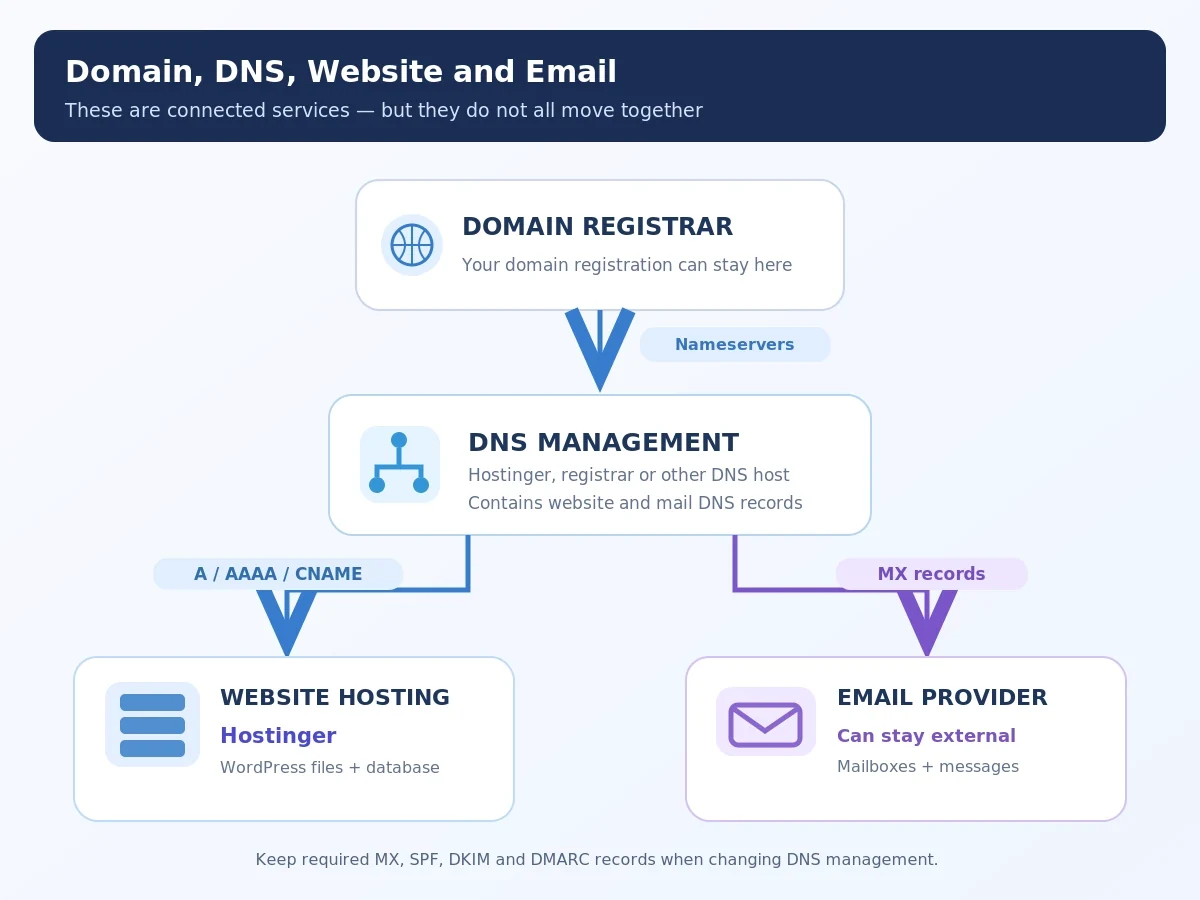
However, moving these components does not automatically transfer every service associated with your domain name.
Domain registration can remain with your current registrar. Your email may continue running through a separate provider, such as Google Workspace or Microsoft 365. DNS records also require attention when you connect the website to its new host.
This distinction matters because website hosting, domain registration, DNS management, and email hosting are related but separate services.
For a beginner-friendly explanation of these services, see our guide to web hosting.
What Should You Prepare Before Starting WordPress Migration?
Preparation is one of the most important parts of moving your WordPress website. A little work before the transfer can prevent unnecessary downtime and make recovery easier if something goes wrong.
Create a complete website backup
Start by creating an independent backup of your existing installation.
A complete WordPress backup should include:
- The database.
- Themes and plugins.
- Uploaded images and media.
- WordPress configuration files.
- Any other files needed by your website.
Download a copy to a secure location outside your current hosting account. Do not rely exclusively on a backup stored on the server you are leaving.
If possible, confirm that the backup is complete and that you understand the available restore procedure.
Check your current hosting environment
Review the resources and technical requirements of the website you intend to move.
Important details include its approximate storage usage, PHP version, active plugins, custom redirects, security settings, and scheduled tasks.
Compare these requirements with the resources included in your intended Hostinger hosting plan.
If you operate an online store, booking system, or membership website, identify information that may change during the transfer, such as orders, registrations, or customer submissions.
Record your domain and email settings
Before making changes, identify:
- Your domain registrar.
- The service managing your DNS records.
- Your existing email provider.
- The current nameservers and relevant DNS entries.
- Any external services connected through DNS.
Pay particular attention to MX, SPF, DKIM, and DMARC records. These help support email delivery and authentication.
Also check whether custom subdomains, verification records, or third-party services depend on your existing configuration.
Important: Keep your current hosting subscription active until the migration and the necessary checks are complete.
How to Migrate a WordPress Site Using Hostinger’s Migration Service
Hostinger provides an assisted website migration service for eligible websites coming from another hosting provider.
This is generally the most practical option for someone who wants to avoid handling database exports and server configuration manually.
Step 1: Confirm that your website qualifies
According to Hostinger’s published requirements, the free migration service is available for eligible websites moving from an external provider to supported Web, Cloud, or Agency hosting plans.
A typical qualifying WordPress website is a self-hosted, single-site installation.
There are important exceptions:
- VPS hosting plans are not eligible for the free assisted migration service.
- WordPress Multisite installations are not supported by Hostinger’s standard assisted migration process.
- Websites already hosted at Hostinger follow a different internal migration process.
- Proprietary website builders cannot necessarily be transferred using the WordPress migration method.
Your destination hosting plan must also have enough resources for the website being transferred.
Check the current Hostinger migration requirements before proceeding.
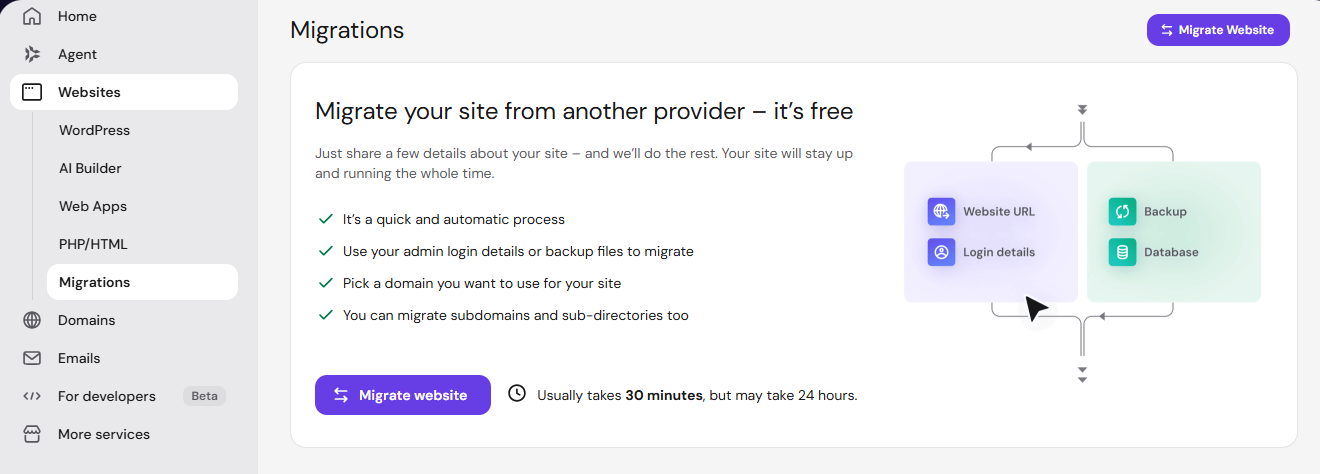
Step 2: Open the migration area in Hostinger
Sign in to your official Hostinger account and access the Hostinger dashboard.
Depending on the current interface, you can locate the migration feature through:
- Websites → Import Website
- Home → Websites → Migrations
Select the option for transferring an existing website from another hosting provider.
The exact labels can change as Hostinger updates its dashboard, so follow the current instructions shown in your account.
Step 3: Provide your existing WordPress details
For an online, self-hosted WordPress installation, select the migration method that uses your current website address and supported login credentials.
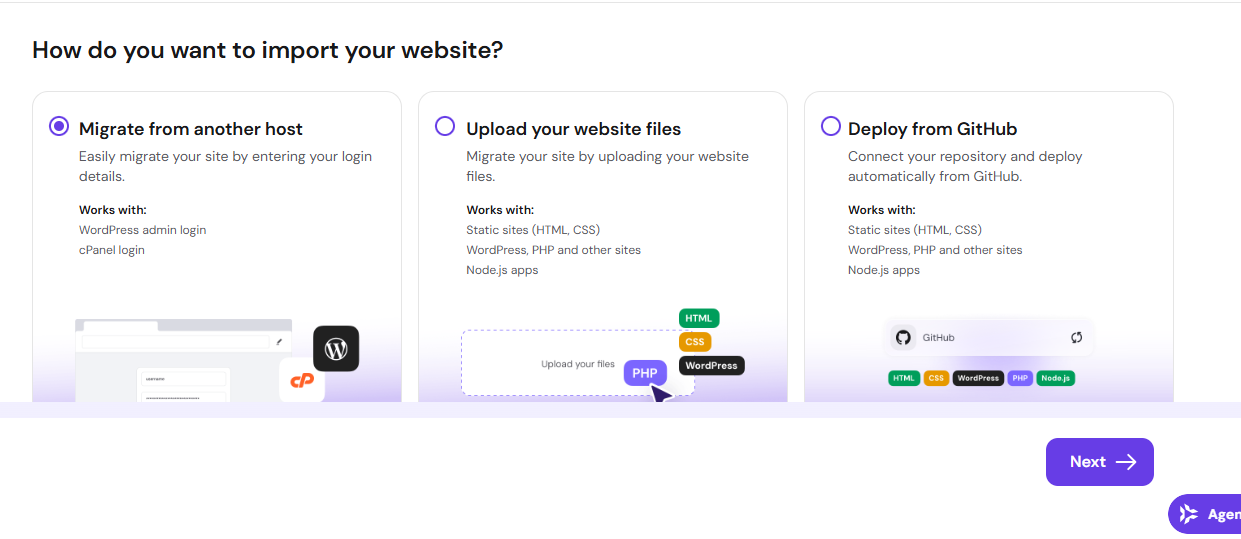
Enter the source domain and provide the required WordPress administrator details through Hostinger’s official migration form.
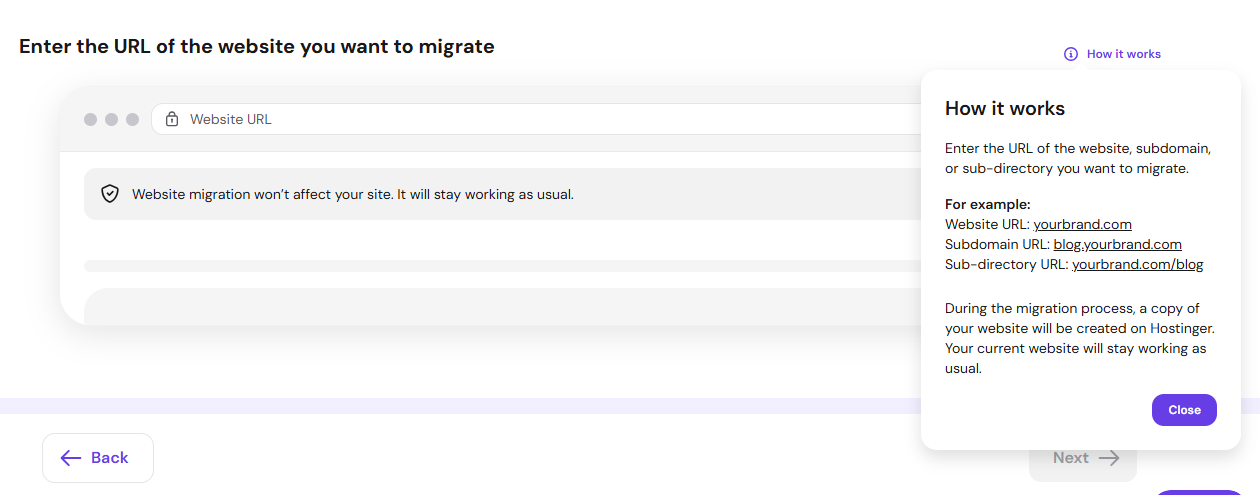
If your existing installation cannot be accessed normally, Hostinger also offers a backup-upload route for suitable cases. This requires the necessary website files and database export.
Use the official Hostinger interface for sensitive credentials. Do not share passwords in public messages or send them to an unverified third party.
If security measures prevent the migration system from accessing your current website, review the provider’s supported options and restore any temporarily adjusted protections immediately afterward.
Step 4: Review and submit the request
Check the source website, destination, and information displayed in the request summary.
Make sure you are not unintentionally overwriting an existing destination website containing valuable content.
Then submit the migration request.
Hostinger handles the supported transfer and allows you to monitor its progress in the Migrations section.
The time required depends on factors such as website size, accessibility, and the migration queue.
Do not update your domain’s DNS settings while the transfer is still running.
Step 5: Confirm completion
When the migration finishes, check the status and completion notification.
A completed transfer means the necessary files and database have been moved, but you should still test the destination before directing visitors to it.
Hostinger’s assisted service does not automatically migrate email accounts, DNS records, custom SSL configurations, FTP accounts, or scheduled tasks. These require separate review.
Should You Use a Migration Plugin or Manual Migration Instead?
Hostinger’s migration service is not the only way to transfer WordPress.
Two alternatives are using a WordPress migration plugin and performing a manual migration.
Option 1: Use a migration plugin
A migration plugin can package website files and database information for transfer to a new hosting environment.
Popular tools include Duplicator and All-in-One WP Migration and Backup.
The general process involves:
- Installing a compatible migration plugin on the source website.
- Creating an export or backup package.
- Preparing the destination WordPress environment if required.
- Importing or restoring the package.
- Checking that files, settings, users, and content transferred correctly.
Check plugin compatibility, import limits, available storage, and licensing requirements before starting.
Some migration plugins overwrite the destination site’s files and database during restoration. If the destination already contains important information, back it up first.
A plugin is useful when you want direct control over the transfer but prefer to avoid handling the database manually.
Option 2: Perform a manual WordPress migration
Manual migration provides more control but requires greater technical confidence.
The usual process is:
- Download the required WordPress files from the old host.
- Export the existing WordPress database.
- Prepare the destination environment in Hostinger.
- Upload the website files to the correct directory.
- Create a new database and database user.
- Import the database export.
- Update the database connection settings in
wp-config.php. - Test the destination installation before directing traffic to it.
This approach requires careful handling of configuration files, database credentials, and server directories.
If the domain name also changes, stored WordPress URLs may need a WordPress-aware search-and-replace procedure that safely handles serialized data.
For readers without database or server experience, an eligible assisted migration is usually the safer starting point.
Hostinger also provides an official manual website transfer guide.
How Can You Test Your WordPress Website Before Changing DNS?
Testing the migrated website before switching DNS is one of the most effective ways to reduce migration problems.
Hostinger describes a preview process and a testing method using SkipDNS and your hosting plan’s IP address.
Use the current official testing instructions provided for your account.
The goal is to confirm that the destination works correctly before your domain begins directing visitors to it.
Check the most important pages
Start with:
- Your homepage.
- Several existing articles or pages.
- Pages containing images and downloads.
- Contact forms.
- Login and account pages.
- Checkout or booking functionality, if applicable.
Check that the content appears correctly and that navigation behaves as expected.
Check the WordPress installation
Review the WordPress admin area and confirm that essential plugins, users, themes, and settings are present.
Look for missing media, broken internal links, redirect loops, and unexpected errors.
Also check caching and HTTPS behavior, remembering that a preview environment may not behave exactly like the final live domain.
Check frequently updated information
A website that accepts orders, registrations, or form submissions can change while migration is underway.
For these websites, confirm whether a final data synchronization or carefully planned content freeze is needed before switching traffic.
A successful test is not simply seeing the homepage load. It means confirming that the functions important to your visitors work on the destination server.
How Do You Point Your Domain Name to Hostinger?
After the migration is complete and the new website has passed testing, the next step is connecting your existing domain to Hostinger.
You generally do not need to transfer domain registration to Hostinger. A domain registered elsewhere can point to a Hostinger website through DNS settings.
There are two common approaches.
Method 1: Change the nameservers
Changing nameservers moves management of the domain’s DNS zone to the service specified by those nameservers.
This can be convenient when you want Hostinger to manage your DNS records.
However, it also affects where records for email, subdomains, and other connected services must be configured.
Before switching nameservers, document your existing DNS configuration and identify which records need to be preserved or recreated.
Hostinger notes that pointing through its nameservers can configure email records for Hostinger Email. If you use another email provider, make sure its correct records are restored.
Use the exact nameserver values shown in your Hostinger dashboard rather than copying values from an outdated tutorial.
Method 2: Update the website’s A records
If you prefer to keep DNS management with your current provider, you can often connect the website by changing its relevant A records.
For example, you may continue using Cloudflare or your domain registrar for DNS while hosting WordPress at Hostinger.
Hostinger’s connection instructions provide the destination IP address and explain which existing website records need to be replaced or adjusted.
Follow those instructions carefully for both the root domain and the www version.
When using this approach, existing email records generally remain under the same DNS provider’s management, provided you do not alter them.
What about DNS propagation?
DNS changes are not always visible everywhere immediately.
During propagation, some visitors may still reach the old server while others reach the new one.
Hostinger advises allowing up to 24 hours for DNS propagation, although actual behavior can vary.
Keep the original hosting available throughout the transition.
For current settings, consult How to Point a Domain to Hostinger.
What Happens to Email When You Migrate WordPress?
Email deserves its own migration plan because website transfers do not automatically include mailboxes or stored messages.
You have two main options: keep your existing email provider or move your email service to Hostinger.
Keep your current email provider
If you already use a reliable email service, you may have no reason to replace it.
Before updating DNS, record the provider’s required:
- MX records for mail routing.
- SPF records for authorized senders.
- DKIM records for message authentication.
- DMARC policy.
- Any relevant verification and service records.
If you keep DNS management unchanged and update only the website records, email settings may not need to change.
If you switch nameservers, confirm that the necessary mail records exist in the new DNS zone before relying on the new configuration.
Test both sending and receiving messages after the switch.
Move email to Hostinger Email
If you decide to change email providers, plan the process separately from WordPress migration.
Hostinger’s email guidance describes creating destination mailboxes, recreating important settings, configuring email-related DNS records, and importing existing messages.
Depending on the source service and available features, importing messages may involve an Email Import or IMAP-based process.
Check the applicable limits and requirements before starting.
You should also recreate any important aliases, forwarding rules, automatic responses, and filters that were configured with the previous provider.
Once migration is complete, test:
- Sending email.
- Receiving email.
- Access through webmail.
- Email applications on your devices.
- WordPress contact forms and SMTP settings.
Do not cancel the old email service until you have verified that important messages and account functions are preserved.
For additional instructions, see Hostinger’s email migration guide.
How Can You Minimize Downtime and Avoid Lost Data?
A well-planned migration aims to keep your website accessible while transferring its content safely.
The most important rule is to avoid sending live traffic to the destination before it is ready.
A practical sequence is:
- Keep the original website online.
- Create a reliable backup.
- Complete the transfer to the new hosting environment.
- Test the migrated copy.
- Plan the final synchronization of changing data if necessary.
- Update DNS.
- Monitor the transition.
- Retire the old hosting service only after successful verification.
For informational blogs, limiting publishing activity during the final transfer may simplify the process.
For ecommerce, membership, or booking websites, additional safeguards may be necessary.
An order received on the old server after the destination database was copied will not necessarily appear in the new database.
The same problem can affect form submissions and account registrations.
Arrange a final data reconciliation or obtain technical assistance for websites with frequent transactions.
It is also useful to avoid making major theme, plugin, or content changes during the migration window.
No migration method can honestly guarantee zero downtime or zero risk in every environment. Careful preparation and testing are what reduce those risks.
How Do You Fix Common WordPress Migration Problems?
Even after a successful transfer, some issues may require attention.
Missing images or broken links
Check that the uploads folder and other required files were transferred completely.
Review affected URLs, file paths, permissions, and any relevant caching settings.
If the public domain changed, references to the previous URL may need to be updated safely.
Error establishing a database connection
This often indicates a problem with the WordPress database connection or database availability.
For a manual migration, verify the database name, username, password, and host configuration in wp-config.php.
Avoid publishing database credentials when asking for technical help.
Redirect loops or incorrect URLs
Check the configured WordPress site address, redirect rules, HTTPS configuration, and relevant caching or security settings.
Do not perform a global database URL replacement unless it is actually required.
Email delivery stopped working
Confirm which DNS zone is authoritative.
Compare the current MX, SPF, DKIM, and DMARC settings with those required by your chosen email provider.
A functioning homepage does not prove that email is working.
SSL or HTTPS warnings
Check whether the live domain points to the intended server and whether a valid certificate is available.
Review mixed-content problems if pages load insecure resources.
Important features stopped working
Test forms, ecommerce functions, authentication, scheduled tasks, and integrations.
Some of these depend on services or configurations that are not included in a standard website transfer.
If a problem cannot be resolved safely, consult the relevant documentation or qualified support before deleting files or shutting down the old environment.
Post-Migration Checklist: What Should You Verify?
After connecting your domain to Hostinger, use the following checklist to confirm that the migration is working as intended.
Website and WordPress
- The homepage and important internal pages load correctly.
- Images, navigation, downloads, and mobile layouts work.
- WordPress admin access is available.
- Essential plugins and theme functionality work.
- Contact forms and other interactive features have been tested.
- Checkout, memberships, and user accounts work when applicable.
Domain, DNS, and email
- The domain points to the intended hosting environment.
- The root domain and
wwwaddress behave correctly. - HTTPS works without unexpected certificate errors.
- Required DNS records are present.
- Incoming and outgoing email work.
- External services connected through DNS remain functional.
Security, backups, and performance
- A recent, complete backup is retained.
- Backups are configured for the new hosting environment.
- Security settings and access permissions have been reviewed.
- Caching is functioning as intended.
- Scheduled tasks and important integrations have been checked.
- Website performance and server errors are being monitored.
SEO and final transition
- Important URLs still resolve correctly.
- No unexpected redirect loops or missing pages have appeared.
- Canonical URLs and indexing settings are correct.
- Search Console does not show unusual crawling or indexing problems.
- Analytics and tracking integrations continue working where applicable.
- The old hosting service remains active until the move is fully verified.
Complete these checks before canceling the previous hosting subscription.
Will Moving WordPress to Hostinger Affect SEO?
Changing hosting providers does not automatically mean changing your public website URLs.
Google distinguishes an infrastructure migration with unchanged URLs from a move that changes the domain or URL structure.
If you keep the same domain and page addresses, you generally do not need to create redirects solely because you switched hosting companies.
However, migration problems can still affect search visibility.
For example, important pages may become unavailable, redirects may break, or the new server may accidentally block search engine crawlers.
Before and after the DNS switch, verify that:
- Important pages are accessible.
- Search engines are not unintentionally blocked.
- Temporary testing restrictions are not present on the live website.
- The existing URL structure is preserved when intended.
- Google Search Console continues receiving useful information.
Monitor the site after migration rather than assuming that a successful DNS update means every SEO requirement has been satisfied.
Google recommends preparing and testing the new infrastructure, switching traffic, monitoring the results, and retiring the old infrastructure only when it is safe.
See Google Search Central’s guidance on changing hosting.
If you are also changing the domain name or permanent URL structure, that is a different migration scenario and may require URL mapping, redirects, and additional SEO planning.
Frequently Asked Questions About WordPress Migration to Hostinger
Can I move WordPress to Hostinger without transferring my domain registration?
Yes. You can keep your domain registered with another company and point it to Hostinger through the appropriate DNS configuration.
Does Hostinger migrate WordPress websites for free?
Hostinger offers free assisted migration for eligible websites coming from another provider on qualifying hosting plans. Eligibility depends on the destination plan, website type, and other published requirements.
Should I update DNS before the migration is complete?
No. Hostinger recommends completing the website transfer before pointing the domain to the destination server. Testing the new environment before switching traffic is also important.
Can I migrate WordPress without a plugin?
Yes. You can use an eligible assisted migration service or transfer the files and database manually. Manual migration requires more technical knowledge.
Will my email accounts move automatically?
No. Plan to preserve your existing email provider or migrate your mailboxes separately. Check the associated DNS records carefully.
Do I need to create a new domain name?
Usually not. If you want visitors to continue using the same website address, you can keep your existing domain.
When can I cancel my old hosting plan?
Only after confirming that website traffic, important functionality, email, DNS, and necessary data have transitioned successfully. Keep a reliable backup before closing the old service.
Final Thoughts: Move Your WordPress Website With Confidence
Moving a WordPress website to Hostinger is easier to manage when you treat it as a series of controlled steps rather than one large technical change.
For most eligible WordPress owners, Hostinger’s assisted migration service is the logical first option. Migration plugins and manual transfers remain alternatives when the standard service does not fit the website.
The most important points to remember are simple:
- Back up the complete website before starting.
- Check hosting requirements and migration eligibility.
- Transfer and test the website before changing DNS.
- Protect email accounts and existing DNS records.
- Monitor the new hosting environment before shutting down the old one.
- Preserve existing URLs whenever a domain change is unnecessary.
If you are still evaluating whether Hostinger is suitable for your website, our Hostinger Review 2026 explains its advantages and limitations. You can also read our Hostinger WordPress plan comparison before choosing a hosting plan.
For the latest features, eligibility requirements, and pricing, check current Hostinger WordPress hosting plans directly with the provider.